How to transfer a domain to your Namecheap Account from another Registrar
Learn how to transfer a domain from another registrar into your Namecheap account using an Authorization Code.
To transfer a domain to your Namecheap account from another registrar, you will require the Authorization Code for the domain from the previous registrar. Once you have the code, you can log in to your account and transfer the domain.
If the domain is already registered in Namecheap, you should use Change Ownership instead.
After your funds have cleared in PROJECT_NAME's protected transaction account, we will email you with confirmation and inform the seller to send you the authorization code. The seller will send you the Authorization Code for the domain you are purchasing from their registered PROJECT_NAME account. The seller can get their Authorization Code for the domain by logging into the dashboard of their registrar and following the instructions on the site. Check out our guides to learn how to obtain the Authorization Code for each registrar.
Before proceeding, you must have the Authorization Code from the selling party for your domain
How to initiate an Authorization Code Transfer
Once you have the Authorization Code, you can initiate the domain transfer from the Namecheap dashboard.
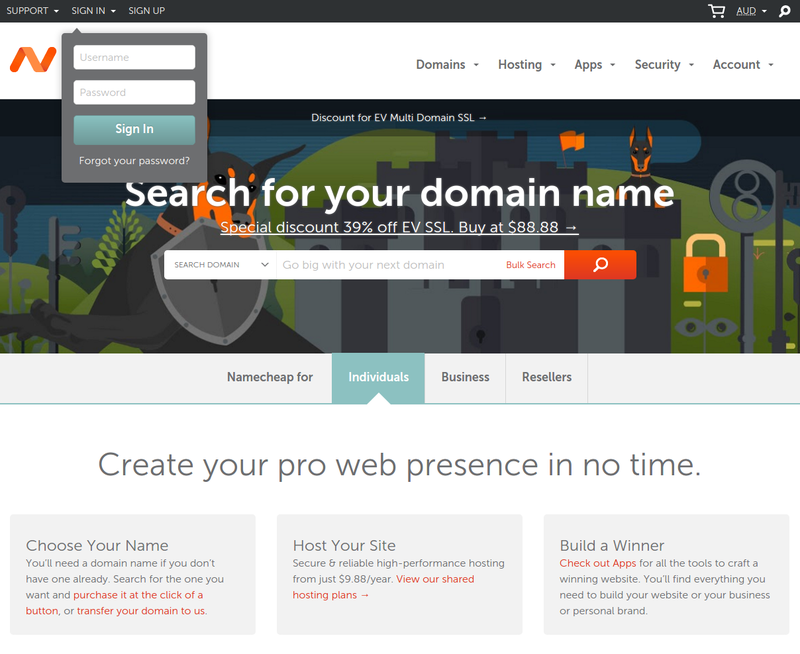
- Log in to your Namecheap account.
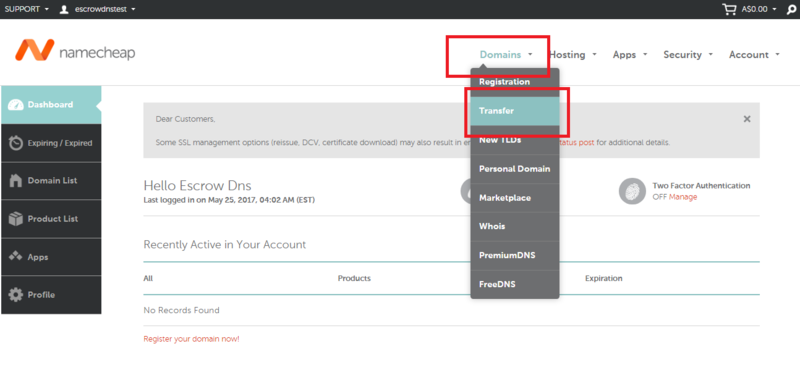
- In the Dashboard tab, select Domains then Transfer.
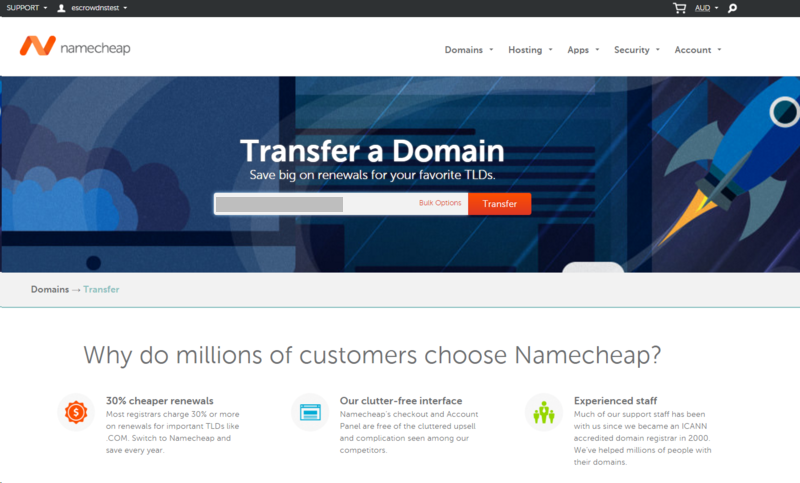
- Enter the domain you are transferring into your account. Then click Transfer.
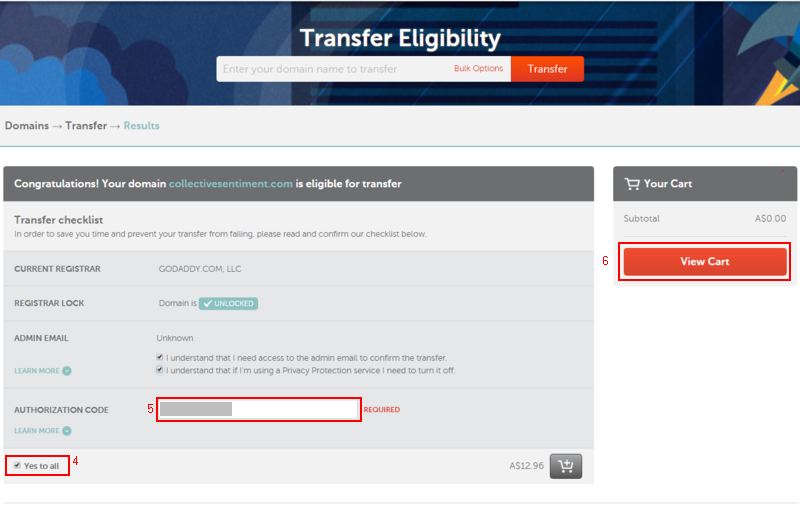
- Ensure the domain is unlocked and privacy is turned off. Then select Yes to all.
- Enter the Authorization Code you received from the seller.
- Then click View Cart.
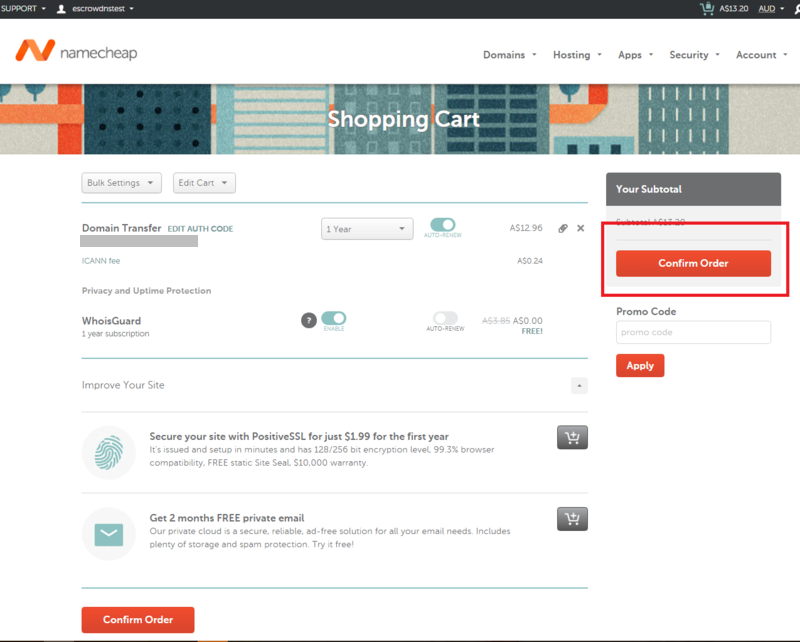
- On Shopping Cart, confirm the details of your transfer. You will have an opportunity to specify the Registration Period, Auto Renew and WhoIsGuard as well as adding additional products to your order. Then click Confirm Order.
- On Billing, enter your payment details
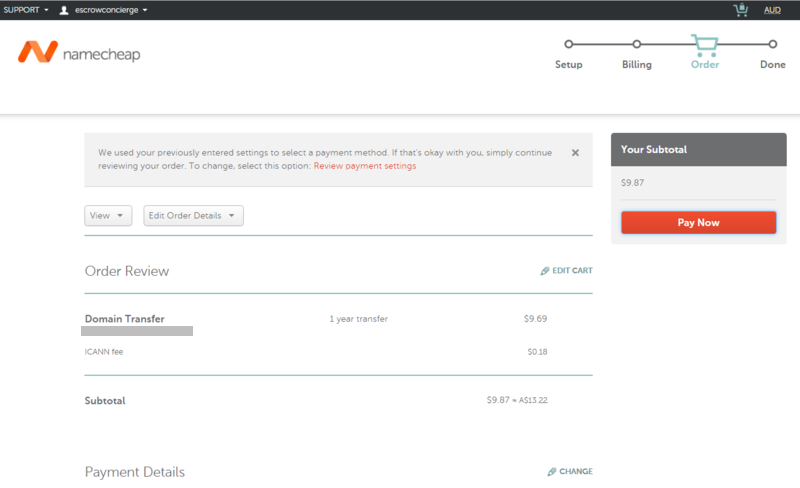
- On Order, confirm your domain name transfer details and additional products and then click Pay Now
To confirm your domain has transferred into your account, select the Dashboard tab. Your domain will be listed with the status Domain is with another registrar Namecheap will email the other party with the details of domain transfer and a link for them to approve transaction. When they have done so, the domain transfer will be complete.